Sunday, September 9, 2012

Combining iPhoneography with Photoshop for Digital Scrapbooking

Skyline Magic


I find myself relying more and more on taking and processing photos with my iphone and/or ipad.  I’ve also been experimenting with a more abstract look achieved with the apps SlowShutter Cam and Decim8 (thanks to the help of friends on Instagram). I can post my photos to Instagram and then use them on my scrapbook pages adding further elements with Photoshop or Photoshop Elements.

Here’s a quick tutorial on a page I recently completed with a photo I took while driving across the San Francisco Bay Bridge. I was wishing the bridge cables weren’t obstructing my view, but it turns out they added a nice graphic element to the photo’s composition.  

These are the apps I used:
Slow Shutter Cam, Gyro Cropper, Squaready, Decim8. Always remember to save your photo to your camera roll after you complete each step.

iPhoneography App steps for creating photo:
1. I took this photo through the car window in Slow Shutter Cam (for blurred effect). I also like the added effect of the bridge cabes. I just started using this app and, with practice, found the instructions and options fairly easy to understand. Save to camera roll.


2. Crop the photo into a horizontal shape in Gyro Cropper. I wanted a horizontal design of the city's skyline. Save to camera roll.


3. Square up in Squaready and save to camera roll.


4. Abstract the image in Decim8 (I used the effect: Doctor Ocular) and save to your camera roll.


PS/PSE steps for creating digital scrapbook page with abstract photo (all elements from Anna Aspnes Designs):
1. add background paper (I used a textured paper from ArtPlay Palette Authentic)
2. place 12x12 photo over background paper in Multiply blend for increased dimension and color. I duplicated the photo at 50% opacity for further depth.


3. To keep the focus on the horizon I added the following elements from ArtPlay Palette Socialize to the skyline: artstroke, tag, stars, word label, word transfer, button, painted edge overlay.


4. To complete the page I added a dotted brush from Anna’s Different Strokes No. 7, light glows from Warm Glows No. 3 and an overlay from ArtPlay Palette Viaggio.
5. Title font, tag font: Arsenale White.


Thursday, September 6, 2012

Scrapbooking Ideas from Get It Scrapped

Ideas for Oversized Embellishments

Check out ideas from Get It Scrapped for GOING BIG with embellishments. 


For my page, Sunny with a chance of showers, I anchored the photo with a large flower. The flower with its branches breaks up the rigid lines of the photo frame. To further support the framed photo, I added oversized tape to the right side and layered the title on top of the tape. I completed the page by adding soft color glows and brushes to compliment the pink hues of the sweet pea branch and to add to the vintage feel.

Supplies: Anna Aspnes Designs: ArtPlay Palette Cuisine, ArtPlay Palette Genuine, ArtPlay Saffron Villa, ArtPlay Palette Sweet Pea, AntiquatedFrame No.1, ArtPlay Palette Gather, WaterColor FotoBlendz No.1, ArtPlay Palette Bask, ArtPlay Palette Blossom, Textured Overlays No.7, MultiMedia Leaves No.1, WarmGlows1, NakedTape;  KittyDesigns:Touch of Magic (Sweet Awaits); Font: Remington Typewriter

Ideas for Scrapbooking Outdoor Travel and Outings

Check out ideas from Get It Scrapped for Outdoor Travel


Bridal Veil Falls: This is a photo of our son, many years ago, standing at the base of Bridal Veil Falls in Yosemite. He looks so tiny against the huge rocks and massive waterfall. The sunlight played beautifully with the colors around him, but I helped nature a bit by adding some Warm and Cool Glows by Anna Aspnes.

Supplies by Anna Aspnes Designs: ArtPlay Palette Easter Chicks (bg paper), WarmGlows No.1, WarmGlows No.3, CoolGlows No.1, ArtPlay Palette SaltyLiving (transfer), ArtPlay Palette Seafoam (brush), Original FotoBlendz No.13, MagicSprinklez No.1, DrippedStains No.5, TexturedOverlays No.7, 12×12 EdgeOverlays No.6, Different Strokes No.8, ArtPlay Palette No.1 (button); Fonts: Veteran’s Typewriter, Arsenale White

Saturday, September 1, 2012

Published in Somerset Digital Studio and Creating Keepsakes Magazine

I'm very excited to have been published in two of my favorite scrapbooking magazines this month, alongside a few of my creative friends on the Anna Aspnes Team , Donna Goar, Adryane Driscoll, Heather Prins and Anna Aspnes: Somerset Digital Studio Autumn Edition 2012 and Creating Keepsakes' Better Digital Photos and Scrapbooking. Somerset Digital is on the shelves now and CK Better Digital Photos will be out this Tuesday, September 4. 


Monday, August 13, 2012

Photo App Tutorial Combining AutoPainter, Tiny Planet and FilterMania2


‘Moonly’ How-to Tutorial using Photo Apps
In the past I have usually used PSE filters to blend and process photos. But when I’m on the go, my iPad has become a valuable tool for photo processing. I am also finding that I can use the same images I post to Instagram on my digital scrapbook pages in my Gallery at Oscraps.

For this process, you will need the following three apps: 1. AutoPainter (for iPhone) or AutoPainter HD (for iPad), 2. Tiny Planet and 3. FilterMania 2. 

Using these three apps, this tutorial will show you how to go from this: 


to this:


Here's how you get there:
1. Open AutoPainter (iPhone) or AutoPainter HD (iPad) and load your original photo. There are four ‘masters’ from which to choose. I chose the first option ‘aquarell’. Click the green start arrow. The app will go through a series of three steps. You can stop the process at any time during these steps and save the result to your camera/photo files. The following three images show the completion of steps 1, 2 and 3. Each step gives you slightly different results, showing the most detail in the final step 3. 

AutoPainter Step 1


AutoPainter Step 2


AutoPainter Step3


I chose Step 3 and saved the final image to my camera roll (always remember to save your results!).

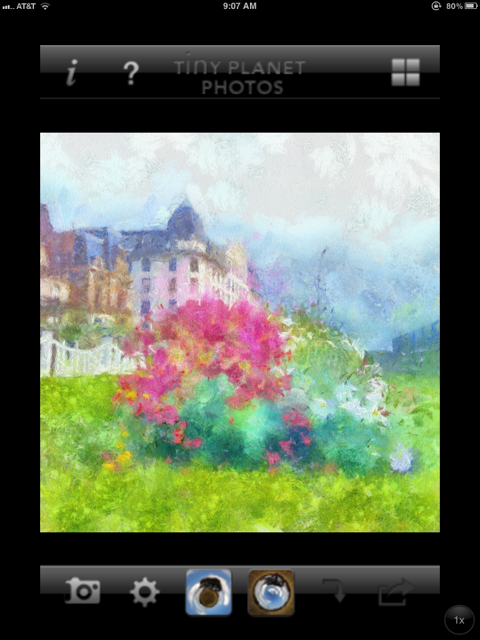
2. Open Tiny Planet and load the image you saved from AutoPainter.


Click on the large round icon and you will get this fun result.


Save the image to your camera roll...and now on to the final step!
Open FilterMania 2 and load the image you saved from Tiny Planet.


Click the green arrow to proceed with the app process. You will see a series of filter options at the bottom of the screen.


Select the 'Moonly' filter and voila...you've got the final result!


Click 'Done' and save the completed image to your camera roll.


To access this image for PS or PSE you can either email it to yourself and save it to your photo files or access it from your photo stream in the Cloud if you have that option.

I used the final image on the page below which you can see (here) in my Gallery at Oscraps, along with a list of products used. I blended the image with Anna Aspnes' SprayPaint FotoBlendz No.1 clipping mask.